Set AI Usage Cost Caps
Add per-principal LLM spending caps, 80% alerts, and hard preflight enforcement to OpenAI-compatible Gateway traffic.
A weekly $50 cap with an 80% alert gives each caller its own budget. When a bounded request
would exceed the remaining budget, Featherlane AI returns 429 budget_exceeded before contacting
the model provider.
This guide applies to OpenAI-compatible calls routed through the Featherlane AI Gateway. It caps customer inference spend; Featherlane AI's own guardrail-model overhead is measured separately.
Before you begin
You need:
- an OpenAI-compatible provider connection and an agent
- a runtime API key bound to the person or agent whose spend you want to track
- the exact model name your application sends, such as
gpt-4o-mini - the provider's current input and output prices for that model
The runtime-key principal is the budget identity. If two callers need separate budgets, give them keys bound to different principals.
The walkthrough below was verified in the Demo / Production workspace with the test agent,
an OpenAI-compatible provider named Demo, and gpt-4o-mini. Use your own provider, agent, model,
and budget values in another workspace.
1. Create the Gateway route
Open Gateway, select New route, and use:
| Field | Production demo value |
|---|---|
| Short id | cost-cap-demo |
| Name | Production cost cap demo |
| Provider | Demo |
| Agent | test |
Select Create route. Featherlane AI generates the OpenAI-compatible base URL and client example for the route. Every enabled policy for the selected environment and agent applies automatically.
2. Set the model price
Open Usage & budgets, then select Set model price.
For the production demo, the provider's default model is gpt-4o-mini. We entered the standard
OpenAI GPT-4o mini prices:
| Field | Production demo value |
|---|---|
| Provider model | gpt-4o-mini |
| Input $ per 1M tokens | 0.15 |
| Output $ per 1M tokens | 0.60 |
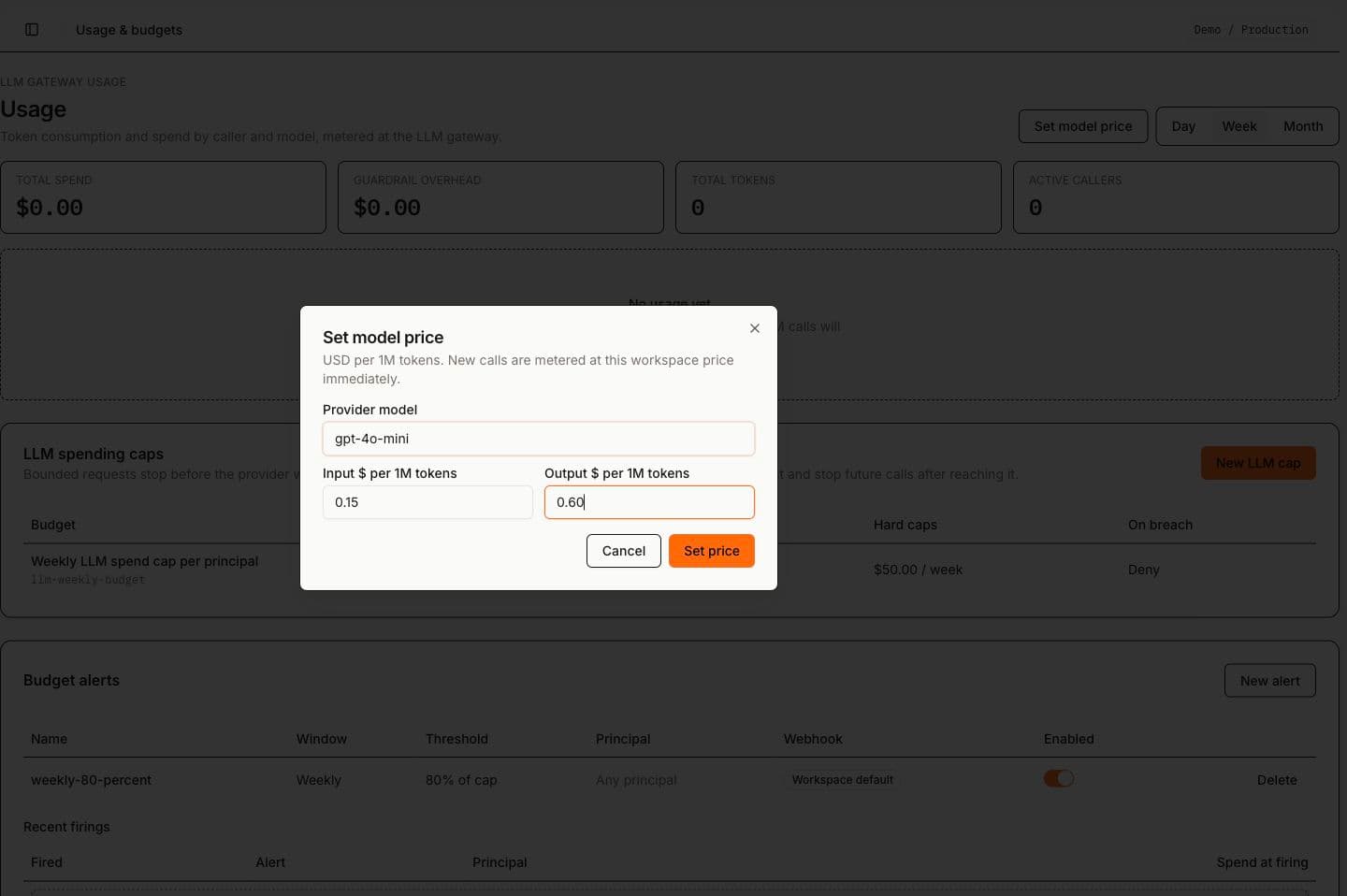
Select Set price. Always verify the provider's current published or negotiated price before saving it; the numbers above reproduce the production demo rather than overriding your provider contract.
Use the provider's published price, including any deployment-specific price you negotiated. New calls use the saved workspace price immediately, while earlier usage keeps its original price snapshot for auditability.
Featherlane AI fails a budgeted request with 503 pricing_unavailable when the requested model has
no trusted price. This prevents unpriced provider spend from bypassing a cap.
3. Create the spending cap
On the same Usage & budgets page, find LLM spending caps and select New LLM cap.
To reproduce the production demo's $50 weekly cap, use:
| Field | Production demo value |
|---|---|
| Control id | llm-weekly-budget |
| Principal | Leave blank to apply the control to every principal |
| Description | Weekly LLM spend cap per principal |
| Daily cap | Leave blank |
| Weekly cap | 50 |
| Monthly cap | Leave blank |
| Cap breach | Deny |
You can set daily, weekly, and monthly caps on the same control. A request must fit under every
configured window. Window boundaries use UTC: days begin at 00:00, weeks begin Monday at
00:00, and months begin on the first day.
Leaving Principal blank does not create one shared workspace pool. The policy applies to every runtime-key principal, and Featherlane AI meters each principal separately. Enter a principal when the control should apply to only one caller.
4. Add an 80% alert
Under Budget alerts, select New alert and use:
| Field | Value |
|---|---|
| Name | weekly-80-percent |
| Window | Weekly |
| Threshold type | Percent of cap |
| Percent | 80 |
| Principal | Leave blank for any principal, or enter one exact principal ID |
| Webhook URL | Optional; otherwise the workspace default is used |
| Enabled | On |
The alert fires once when spend crosses the threshold during that budget window. The firing appears under Recent firings. Add a webhook when an external system should receive the alert.
The alert window must match a window that has a hard cap. For example, a weekly alert watches the weekly cap, not the daily or monthly cap.
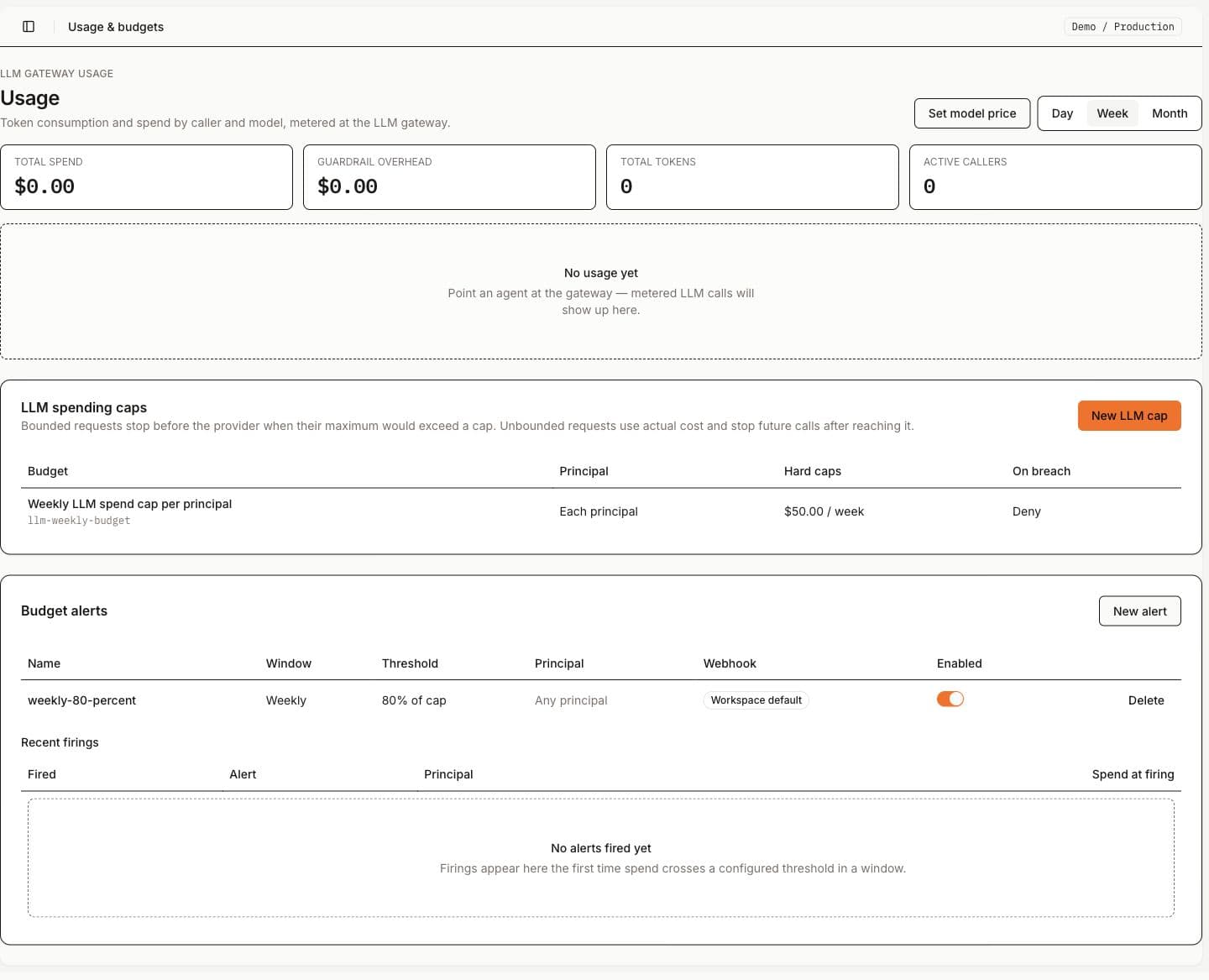
After saving, Usage & budgets should show the $50.00 / week cap and the enabled
weekly-80-percent alert:
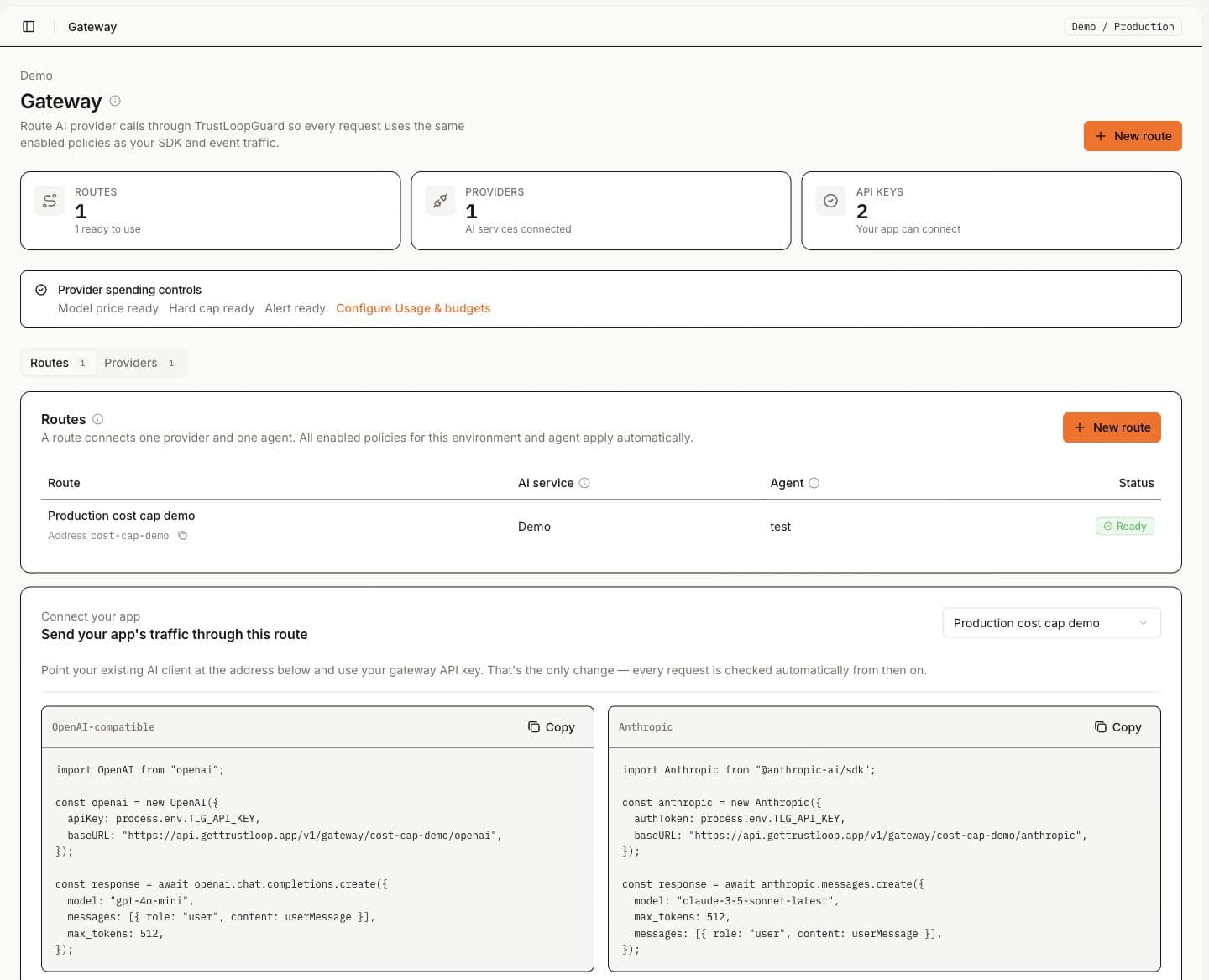
Return to Gateway. The Provider spending controls card should show Model price ready, Hard cap ready, and Alert ready:
5. Bound each request
Change two settings in your existing OpenAI-compatible client:
- use the Featherlane AI runtime key instead of the provider key
- use the Gateway route as the base URL
Keep the model and message format unchanged. Set max_tokens or max_completion_tokens to make
the cap strict before provider spend:
import OpenAI from 'openai';

const openai = new OpenAI({
  apiKey: process.env.FEATHERLANE_AI_API_KEY,
  baseURL: 'https://api.featherlane.ai/v1/gateway/cost-cap-demo/openai',
});

const response = await openai.chat.completions.create({
  model: 'gpt-4o-mini',
  messages: [{ role: 'user', content: 'Summarize this support ticket.' }],
  max_tokens: 512,
});
The provider credential remains encrypted behind the Gateway route. Do not put the provider key or the Featherlane AI runtime key in browser code.
Replace cost-cap-demo with the short id of your own route. Keeping a positive max_tokens (or
max_completion_tokens) is what lets Featherlane AI reserve the maximum possible cost and enforce
the cap before contacting the provider.
6. Verify enforcement
Send one normal bounded request, then open Runs and Usage & budgets.
Confirm that:
- the run shows the caller, model, tokens, price snapshot, and estimated cost
- the budget decision shows the applicable windows and remaining amounts
- Usage & budgets groups customer spend by caller and model
- guardrail overhead is reported separately from customer inference
To test the hard stop without risking production traffic, use a test environment:
- Keep the real model price.
- Create a small cap.
- Choose an output-token bound whose maximum priced cost is greater than the remaining cap.
- Send the request.
Featherlane AI should return HTTP 429 with budget_exceeded. The provider must not receive the
request, so its usage should not increase.
Strict and soft behavior
| Request | Behavior |
|---|---|
Positive max_tokens or max_completion_tokens | Featherlane AI reserves the maximum cost atomically. It blocks before the provider when the request cannot fit. |
| No output-token bound | The request is allowed while current spend is below the cap, then settled to actual usage. One request can overshoot before later calls stop. |
| Unknown model price | The request fails with 503 pricing_unavailable before provider spend. |
| Cap reached or bounded maximum does not fit | The request fails with 429 budget_exceeded before provider spend. |
If the requirement is “never exceed the cap,” require a positive output-token bound on every request. Unbounded requests are compatibility mode, not a strict hard-cap guarantee.
Provider invoices remain the final billing authority. Featherlane AI estimates cost from the model price snapshot and token usage reported by the provider.